Completing a Forward Limit Order
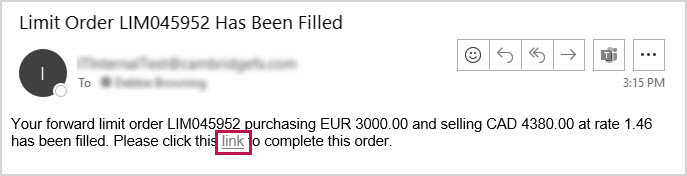
When your target rate becomes available, the Forward Limit Order is automatically filled. You will receive an email to let you know that the order was filled. To complete a filled order, you need to enter settlement instructions to pay the required deposit.
To complete a Forward Limit Order
- Click the link in the confirmation email that you received.
Alternatively, on , under , click Then, on the page, click the edit icon beside the order you want to complete.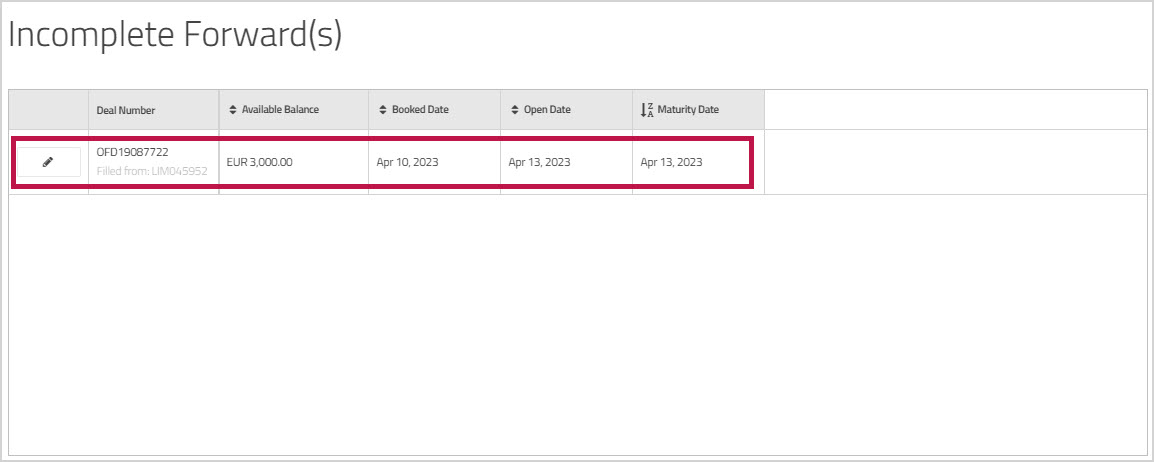
Note: The entry on the page shows you the Limit Order number that you submitted - On the page, review the details for the forward, including the amount of the deposit you need to pay.
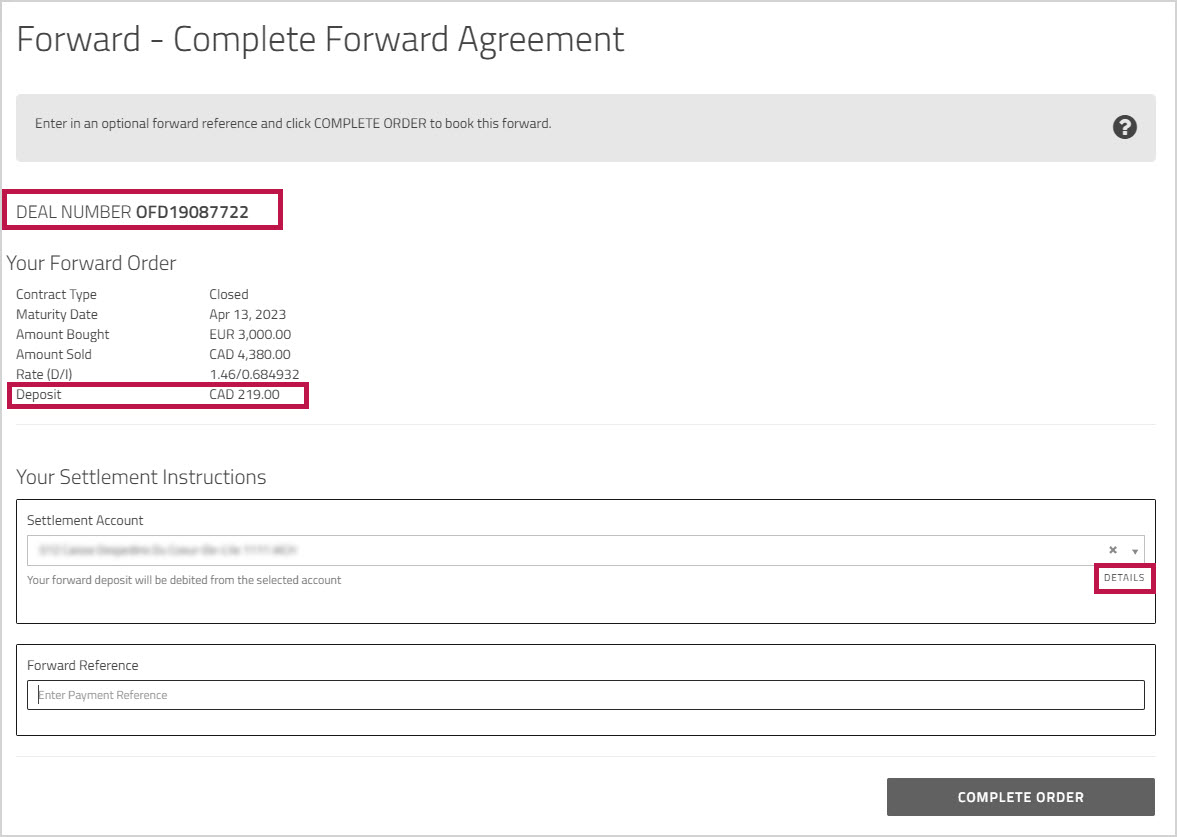
- From the dropdown list, choose the account you want to use to pay the deposit.
By default, the field displays your preferred account. However, if you have more than one account in that currency, you can choose another account from the dropdown list.
You can hover your mouse over the label (located just below the field) to view information about that account. - Optionally, enter any comments or reference information in the text box.
- Click to book the forward.
The order receipt is displayed on the page.
The deal now appears in grid at the bottom of , on the tab.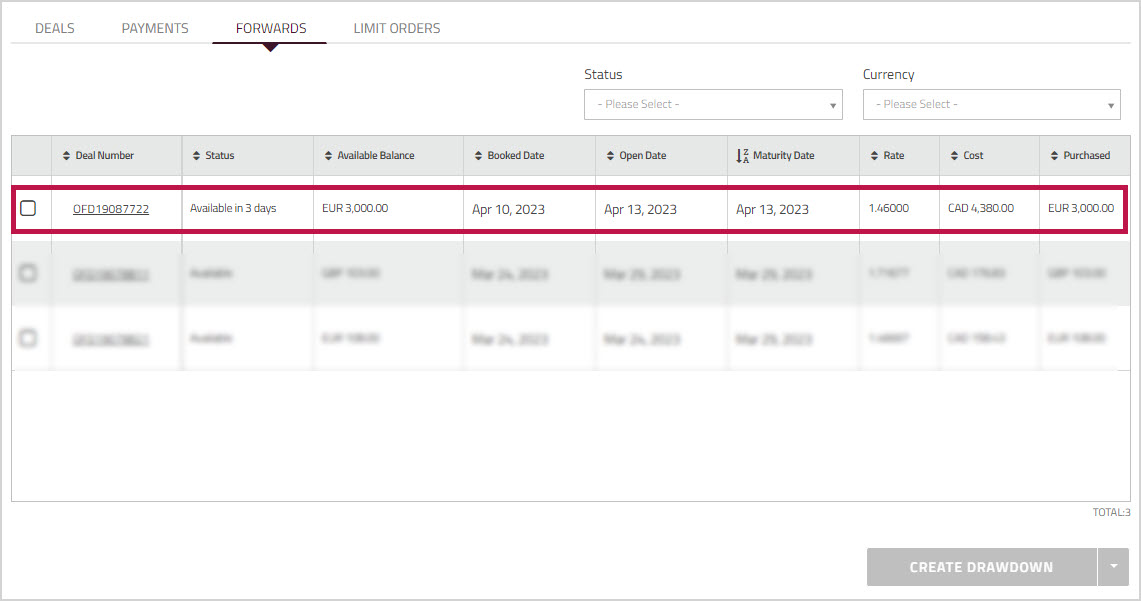
When the deal's status is , you can draw down funds from the Forward to send payments to beneficiaries or to your Multi-Currency Account. For more information, see Drawing down against a Forward.